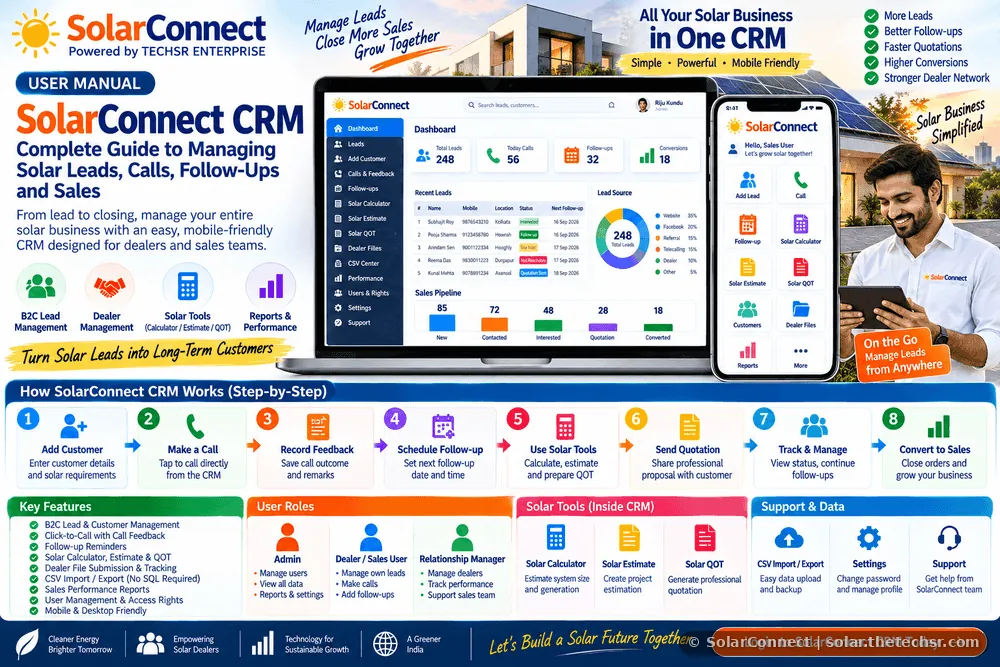
SolarConnect CRM User Manual: Complete Guide to Managing Solar Leads, Calls, Follow-Ups and Sales
Learn how to use SolarConnect CRM to manage B2C solar customers, leads, calls, follow-ups, solar tools, dealer files, CSV data and sales performance from one mobile-friendly platform.
SolarConnect CRM powered by TECHSR ENTERPRISE is designed to simplify these daily activities through a mobile-friendly B2C solar CRM workflow.
The system is designed around a simple principle: add the customer, contact the customer, record the conversation, schedule the next action and continue the sales process.
This user manual explains the main SolarConnect CRM features, how to use them and how each section fits into the solar sales process.
What Is SolarConnect CRM?
SolarConnect CRM is a customer and lead-management platform designed for solar dealer operations. The current CRM workflow focuses on B2C customer management while providing supporting functions for sales activity, dealer-file handling and solar business tools.
The system uses a lightweight data structure based on CSV files rather than a MySQL database. This makes the system suitable for businesses that want a simple operational CRM without a complex database environment.
The CRM includes important modules for:
- B2C lead management
- Customer information management
- Quick calling
- Call feedback
- Follow-up scheduling
- Solar Calculator
- Solar Estimate
- Solar QOT
- Dealer file submission and status management
- CSV import and export
- Sales performance reporting
- User management and rights
- Password management
- CRM support
Who Can Use SolarConnect CRM?
The CRM supports different user roles according to the configured access rights.
Administrator
The Administrator has the broadest access and can manage users, leads, sales activities, data and system-level functions according to the configured permissions.
Dealer
The Dealer can work with customer and lead information assigned to their account, make calls, record call feedback, manage follow-ups and use the available solar sales tools according to their rights.
Relationship Manager
The RM role can provide additional operational access, including dealer-file management and other permissions configured for the account.
User permissions can be controlled through the CRM's rights system.
Understanding the SolarConnect Sales Workflow
The CRM is designed around a simple field-sales process:
Add Customer → Call Customer → Record Call Feedback → Schedule Follow-Up → Use Solar Tools → Continue Follow-Up → Convert Opportunity
This approach keeps the sales process easy to understand for both office users and field sales representatives.
Step 1: Login to SolarConnect CRM
Open the SolarConnect CRM login page and enter your assigned User ID and password.
After successful authentication, the CRM opens the dashboard according to the user's role and permissions.
For security, users should never share their password with another person. If a password needs to be changed, use the Settings section of the CRM.
Step 2: Understand the Dashboard
The dashboard provides the main starting point for daily CRM activities.
Depending on the user's permissions and configured version, the dashboard provides access to important operational sections such as:
- Leads
- Add Customer
- Calls
- Follow-ups
- Solar Tools
- Dealer Files
- Performance
- CSV Center
- Settings
- Support
The objective of the dashboard is to give the user quick access to the actions required during daily solar sales work.
Step 3: Add a New B2C Customer
To begin managing a new customer, open the Add Lead section.
The CRM is configured for B2C customer lead management. The entry form captures important information that can help the salesperson understand the customer's solar requirement.
Customer Information
- Contact person
- Phone number
- Alternate phone number
- WhatsApp number
- Address
- City
- State
- Pincode
Business and Identification Information
- Business name where applicable
- GSTIN where applicable
- Lead source
- Customer type
Solar Requirement Information
- Monthly electricity bill
- Roof type
- Roof area
- Solar requirement
- Expected solar capacity
- Site availability
- Space details
- Investment budget
- Existing business information
- Solar experience
Users should enter accurate information because this data can later be used during customer discussions, solar calculations, quotations and follow-ups.
Step 4: Select Lead Status and Priority
Every lead should have a clear status so that the salesperson knows what needs to happen next.
The CRM also provides fields for:
- Status
- Priority
- Interest level
- Estimated value
- Expected capacity
These fields help the sales team organize customer opportunities and identify leads requiring attention.
Step 5: Save the Customer Information
After entering the available information, save the lead.
The CRM generates and maintains lead information so that the customer can be accessed again without entering the same information repeatedly.
Each lead can contain its own history of calls, remarks and follow-up activities.
Step 6: Search Existing Customers
Before creating a new entry, users should check whether the customer already exists.
The Leads section provides a search facility that can be used to find records using information such as:
- Name
- Phone number
- City
Searching before adding a new record can help reduce duplicate customer entries.
Step 7: Call the Customer
Once a lead is available, the salesperson can use the CRM's calling workflow.
The recommended process is:
Open Customer → Tap CALL → Speak With Customer → Return to CRM → Record Call Feedback
The purpose is to make the CRM part of the actual sales conversation rather than a separate administrative task.
Step 8: Record Call Feedback
After speaking with the customer, return to the CRM and use the Call & Feed section.
The salesperson can record the outcome of the conversation.
Examples of call outcomes include:
- Connected - Very Interested
- Connected - Interested
- Connected - Follow-Up Required
- Not Interested
- Call Later
- Not Reachable
- Wrong Number
The exact available options may depend on the configured CRM version.
Call feedback is important because it creates a record of what happened during the conversation.
Step 9: Add Remarks After Every Important Call
A short and useful remark can make the next follow-up much easier.
For example:
- Customer requested quotation.
- Customer wants to discuss with family.
- Customer requested site visit.
- Customer interested in solar estimate.
- Customer asked about payment options.
- Customer requested callback tomorrow.
Salespeople should avoid vague remarks such as "talked" or "call done". The remark should explain the next business action.
Step 10: Create the Next Follow-Up
A lead should not be left without a next action when follow-up is required.
The Follow-up section allows the salesperson to set:
- Follow-up date
- Follow-up time
- Purpose
- Status
- Remarks
- Reminder timing
The CRM supports reminder options such as the follow-up time itself, several minutes before the appointment, one hour before or one day before.
Follow-Up Purpose
The CRM supports different follow-up purposes suitable for solar sales activities.
Examples include:
- General Follow-up
- Dealer Discussion
- B2C Solar Discussion
- Proposal Follow-up
- Site Visit
- Solar Estimate
- Solar QOT
- Agreement
- Payment Follow-up
- Dealer File
- Management Discussion
This allows the salesperson to identify why the next conversation is required.
Step 11: Use the Solar Tools
SolarConnect CRM provides direct access to supporting solar sales tools.
The Solar Tools section includes:
- Solar Calculator
- Solar Estimate
- Solar QOT
- Dealer File Submission
These tools are designed to support the sales process without requiring the salesperson to leave the CRM workflow and manually search for each tool.
Solar Calculator
The Solar Calculator can be used to support an initial discussion about the customer's solar requirement.
Depending on the calculator configuration, the salesperson can evaluate relevant factors such as electricity consumption, system capacity and estimated project information.
Remember that calculator results are estimates. Final system design should be based on appropriate technical assessment and project requirements.
Solar Estimate
The Solar Estimate tool can be used when the customer requires a more structured estimation of the proposed solar project.
A salesperson can use the customer's information collected in the CRM as the basis for preparing the estimate.
Solar QOT
The Solar QOT tool is intended to support quotation preparation.
The recommended workflow is:
Customer Requirement → Solar Calculation → Estimate → Product Selection → Quotation → Customer Follow-Up
This creates a more organized sales process and reduces unnecessary repetition.
Step 12: Dealer File Submission
The CRM includes a Dealer File Submission link for submitting required dealer-related information through the configured form.
Where dealer-file management permissions are available, the CRM can also maintain the status of dealer files.
Possible file statuses include:
- Pending / No
- Submitted / Yes
A file link can also be stored against the relevant record for easier access.
Dealer File Management for RM and Admin
Users with appropriate permissions can open the Dealer File Management section.
This section can be used to:
- Review dealer-file records
- Check file submission status
- Update file status
- Store or update the file link
- Open the submitted file
This helps management reduce uncertainty about whether required documentation has been submitted.
Step 13: View Lead Details
The Lead Details section provides a consolidated view of the customer's information.
It can bring together:
- Customer information
- Solar requirements
- Remarks
- Call history
- Follow-up information
- Lead status
- Dealer-file information where applicable
This is useful when a salesperson needs to understand the complete history before contacting the customer again.
Step 14: Review Call History
The Call History section provides a record of recorded calls.
Call information can include:
- Call time
- Sales user
- Customer phone number
- Call outcome
- Call duration
- Next follow-up
- Remarks
This creates an activity history that can be useful for both sales users and management.
Step 15: Manage Follow-Ups
The Follow-ups section is one of the most important parts of the CRM for daily sales operations.
Users can review upcoming actions and identify which customers need attention.
A good daily routine is:
Open CRM → Check Today's Follow-Ups → Contact Customers → Record Feedback → Set Next Action
This simple routine can help prevent leads from being forgotten.
Step 16: Use CSV Import and Export
SolarConnect CRM uses CSV-based data storage and provides a dedicated CSV Center.
The CSV Center can be used for:
- Importing lead data
- Exporting lead data
- Exporting call records
- Exporting follow-up records
- Maintaining external backups
The CRM is designed to skip duplicate mobile numbers during lead import according to its configured import logic.
Why CSV Backup Is Important
Because the CRM stores operational information in CSV files, regular backups should be part of the business process.
Businesses should maintain secure copies of important CRM data and restrict public access to the CRM data directory.
Backup files should also be stored securely and access should be limited to authorized personnel.
CSV Data Management
The CRM organizes important information into separate CSV datasets for areas such as:
- Users
- Leads
- Calls
- Follow-ups
This structure keeps the system lightweight while maintaining separate records for major CRM activities.
Step 17: User Management and Rights
Administrators can manage CRM users and their access rights.
Available rights can include:
- Dashboard access
- View Leads
- Add Leads
- Edit Leads
- Delete Leads
- Call Feedback
- Follow-ups
- Dealer Files
- CSV Import / Export
- User Management
Role-based permissions allow management to provide users with only the functions required for their responsibilities.
Why User Rights Matter
Customer information is valuable business data. Not every employee needs access to every function.
A structured rights system can help management control who can:
- View customer information
- Add new leads
- Edit records
- Delete records
- Export data
- Manage users
- Manage dealer files
Businesses should review user permissions regularly, especially when employees join, change responsibilities or leave the organization.
Step 18: Check Sales Performance
The Performance section provides a management-oriented view of CRM activity.
Depending on the configured reporting logic, performance information can include indicators such as:
- Total leads
- Total calls
- Interested leads
- Converted leads
- B2C customers
- File submissions
- Estimated value
- Conversion information
These metrics help management understand sales activity rather than relying only on verbal updates from salespeople.
Use CRM Data to Improve Sales Management
Management can use CRM reports to ask practical questions:
- How many new leads were received?
- How many customers were contacted?
- How many follow-ups are pending?
- How many customers showed interest?
- How many quotations were requested?
- How many opportunities converted?
- Which sales users have pending follow-ups?
- Which lead sources are generating enquiries?
The answers can help management identify operational gaps and improve the sales process.
Step 19: Change Your Password
Users can change their password through the Settings section.
The password-change process requires:
- Current password
- New password
- New password confirmation
The User ID remains unchanged. Users should choose a strong password and avoid sharing it with colleagues.
Step 20: Contact SolarConnect Support
The CRM includes a Support section for technical and operational assistance.
Users can contact support for issues related to:
- CRM problems
- User access
- Dealer-file issues
- Data problems
- Technical support
When contacting support, provide your User ID, relevant lead or file code and a short description of the issue. This helps the support team understand the problem more quickly.
Recommended Daily Routine for Solar Dealers
A simple daily CRM routine can make the system easier to use.
Morning
- Login to the CRM.
- Check pending follow-ups.
- Review new leads.
- Prioritize high-interest customers.
During Sales Calls
- Open the customer record.
- Tap the calling option.
- Speak with the customer.
- Record the call outcome.
- Add useful remarks.
- Schedule the next follow-up.
During Customer Discussions
- Review electricity information.
- Understand the rooftop requirement.
- Use the Solar Calculator.
- Prepare an estimate when required.
- Prepare the Solar QOT when appropriate.
End of Day
- Check unfinished follow-ups.
- Update important lead statuses.
- Review call activity.
- Make sure important customer remarks are recorded.
Simple SolarConnect CRM Sales Flow
The complete workflow can be remembered using this seven-step process:
| Step | Action | Purpose |
|---|---|---|
| 1 | Add Customer | Create a structured lead record |
| 2 | Call | Start customer communication |
| 3 | Talk | Understand customer requirements |
| 4 | Call Feedback | Record conversation outcome |
| 5 | Follow-Up | Schedule the next action |
| 6 | Solar Tools | Calculate, estimate and prepare QOT |
| 7 | Track | Continue the customer journey |
How SolarConnect CRM Helps Reduce Manual Work
Traditional solar sales management may involve separate notebooks, spreadsheets, phone contacts, WhatsApp messages and quotation files.
The CRM brings important sales activities into one structured workflow.
Instead of asking:
"When did I last speak to this customer?"
The salesperson can open the customer record and review the available call and follow-up history.
Instead of searching for separate solar tools, the salesperson can access the configured Solar Calculator, Solar Estimate and Solar QOT links from the CRM.
Best Practices for CRM Users
- Always search before creating a new customer.
- Enter correct mobile numbers.
- Record useful call feedback after conversations.
- Always create a next follow-up when required.
- Keep remarks short but meaningful.
- Update customer status regularly.
- Use the solar tools according to the customer's requirement.
- Do not share your login credentials.
- Do not export or share customer data without authorization.
- Maintain regular CSV backups according to company policy.
What Not to Do in the CRM
- Do not create duplicate customer records unnecessarily.
- Do not enter fake or incomplete call feedback.
- Do not leave important follow-ups undocumented.
- Do not share customer information with unauthorized people.
- Do not modify exported CSV files carelessly and re-import them without checking the data.
- Do not share your CRM password.
- Do not promise customers technical specifications or financial benefits without verification.
Mobile-First CRM for Field Sales
Solar salespeople frequently work outside the office. A mobile-friendly CRM is therefore important for practical field operations.
SolarConnect is structured around quick mobile actions such as:
- Customer search
- Lead entry
- Calling
- Call feedback
- Follow-up creation
- Solar tool access
- Customer information review
The goal is to make CRM usage simple enough that salespeople can update records immediately after a customer interaction.
How a Dealer Can Use SolarConnect From Lead to Conversion
Imagine a new residential customer enquiry.
The salesperson first creates the customer record and enters the available electricity and rooftop information. The salesperson then calls the customer and records the conversation outcome.
If the customer is interested, the salesperson schedules a follow-up and uses the Solar Calculator to support the initial discussion.
The customer can then be moved through the estimate and quotation process. After each conversation, the salesperson records the latest status and schedules the next required action.
This creates a continuous sales history:
Lead → Call → Interest → Calculation → Estimate → QOT → Follow-Up → Conversion
SolarConnect CRM Feature Summary
| Feature | Use |
|---|---|
| B2C Lead Management | Manage residential solar customer enquiries |
| Customer Details | Maintain contact and requirement information |
| Calling | Quickly contact customers |
| Call Feedback | Record conversation results |
| Follow-Ups | Schedule the next customer action |
| Solar Calculator | Support solar requirement calculations |
| Solar Estimate | Prepare project estimates |
| Solar QOT | Support quotation preparation |
| Dealer Files | Track configured dealer documentation |
| CSV Center | Import, export and backup CRM data |
| Performance | Review sales activity |
| User Rights | Control access to CRM functions |
| Settings | Manage account and password |
| Support | Contact SolarConnect support |
Conclusion
A CRM becomes valuable when it becomes part of the salesperson's daily routine.
SolarConnect CRM is structured around a simple solar-sales workflow that connects customer management, calling, call feedback, follow-ups, solar tools, dealer-file activities, CSV data and performance tracking.
For a solar dealer, the most important habit is consistency. Every important customer interaction should be recorded, every required follow-up should be scheduled and every customer record should remain updated.
When salespeople consistently use the CRM, management can gain a clearer view of the sales pipeline while individual users can maintain better control over their daily customer activities.
SolarConnect powered by TECHSR ENTERPRISE provides a practical foundation for managing B2C solar customer operations in a simple, mobile-friendly environment.
Add the customer. Make the call. Record the conversation. Schedule the follow-up. Use the solar tools. Keep moving the opportunity forward.
Important: CRM features and permissions may vary according to the deployed configuration and user rights. Keep CRM data protected, maintain regular backups and provide users only the access required for their responsibilities.
Source: SolarConnect India – solar.thetechsr.com
Back to Solar Blog